> For the complete documentation index, see [llms.txt](https://docs.blippar.com/webar-sdk/llms.txt). Markdown versions of documentation pages are available by appending `.md` to page URLs; this page is available as [Markdown](https://docs.blippar.com/webar-sdk/v.1.7.1/integrations/playcanvas-integration/build-a-basic-marker-tracking-experience.md).
# Build a Basic Marker Tracking Experience
Construction of an AR experience using image or marker tracking
{% content-ref url="/spaces/3UKy7VHRJWrNarYaMp13" %}
[Blippar Documentation Centre](https://docs.blippar.com/blippar-documentation-centre/)
{% endcontent-ref %}
## **Marker Tracking**
## Create a basic scene
* Login to your PlayCanvas Account OR you can alternatively click the link to fork this PlayCanvas [Marker Tracking](https://playcanvas.com/project/859368/overview/marker-tracking) project
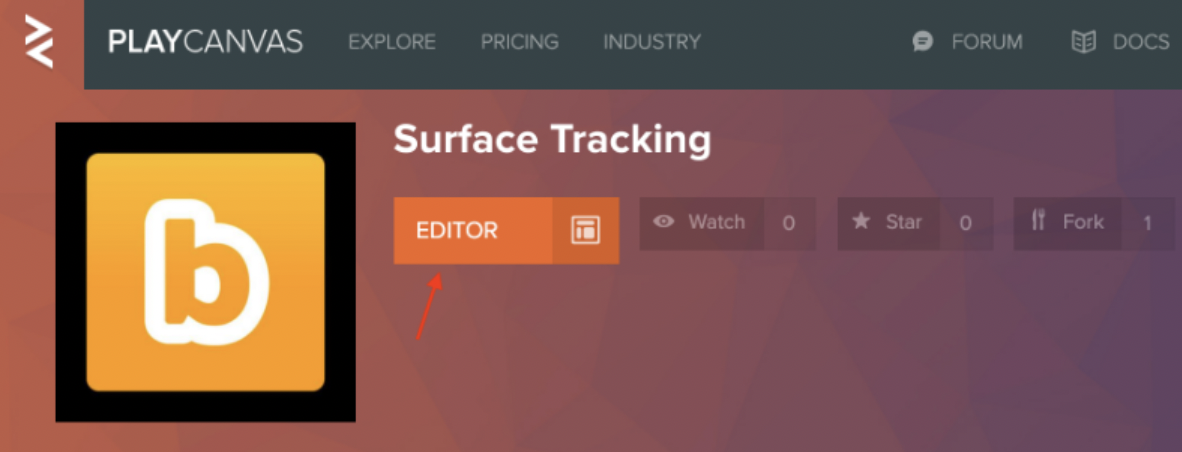
* Click **'Editor'** to open the project in PlayCanvas Editor as shown in the image below:
PlayCanvas Editor
* Select the **Main** Scene
* Click the gear icon to open Main settings as show in the image below:
* A pop-up will appear as an instructor panel on the right side of the screen
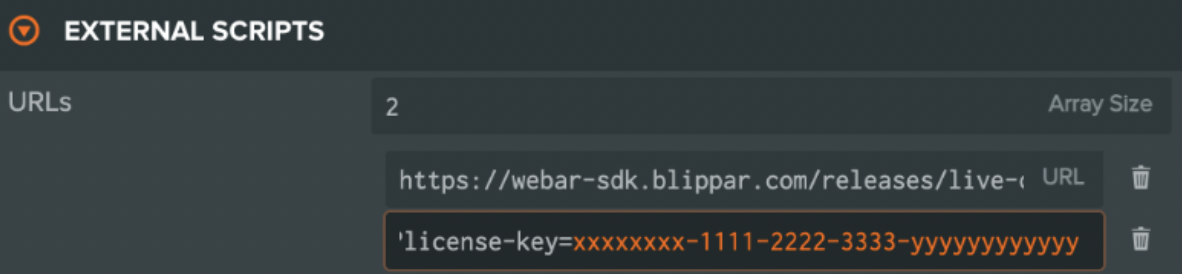
* Click on **'External Scripts'**
* A URLs pop-up will appear on the screen with a sample license key as shown in the image below:
* In the left **'Hierarchy'** panel select the **Root** Entity
* In the right Inspector Panel, click the **'arrow'** next to WebarSdkSurface '**Script'** component aand make sure the following the following details are entered:
* Ensure the *Camera* Entity is selected under the **Webar Camera** field
* Enter the number (maximum 10) of marker images to be tracked in the **MarkerEntityMap**'s **Array Size** field. Each array object has a map of Marker Id with the Entity to be displayed on the marker image when scanning.
* In the forked example, replace the sample Marker Ids (dddddddd-uuuu-mmmm-mmmm-yyyyyyyy1111 and dddddddd-uuuu-mmmm-mmmm-yyyyyyyy2222) with valid Marker Ids obtained from the Marker Manager in the Blippar hub.
* For more information refer [this article](https://support.blippar.com/hc/en-us/articles/4410413461011-Building-a-Basic-Marker-Tracking-Experience)[ ](/webar-sdk/v.1.7.1/integrations/a-frame-integration/build-a-marker-tracking-experience.md)on how to Add Marker and Manage Marker
* Click **Publish/Download** from the left panel and download the project
* Host it on a local/remote HTTPS web server
* You can alternatively host it on a server having the same domain name as the one for which the license key is registered.
* For more information refer article [develop locally](https://support.blippar.com/hc/en-us/articles/4407844463763-Develop-Locally)[ ](/webar-sdk/v.1.7.1/publish-your-creation/develop-locally.md)to setup a local HTTPS web server.
## View The Experience
Load the URL on a mobile browser(iOS Safari or Android Chrome) to start scanning the marker images to experience Marker Tracking