# Build a Marker Tracking Experience

{% content-ref url="/spaces/3UKy7VHRJWrNarYaMp13" %}
[Blippar Documentation Centre](https://docs.blippar.com/blippar-documentation-centre/)
{% endcontent-ref %}

## Introduction <a href="#h_01fmg1fd55cyag5s1sq09pmhjx" id="h_01fmg1fd55cyag5s1sq09pmhjx"></a>

This guide walks you through the process of building a basic scene using marker tracking or image tracking feature of WebAR SDK. The marker images can be tracked using the mobile app developed using WebAR SDK.

New attribute <mark style="color:red;">webar-marker</mark>=<mark style="color:blue;">"id: 123-xyz"</mark> can be added to an Aframe <mark style="color:orange;">\<a-entity></mark> to display a 3D model on a marker/image surface.

## Procedure

Follow the below steps to build a basic scene using marker tracking:

## Add marker <a href="#h_01fmg1fspbgrt23cawr8k8yjjx" id="h_01fmg1fspbgrt23cawr8k8yjjx"></a>

* Login to the[ HUB](https://www.blipps.blippar.com).
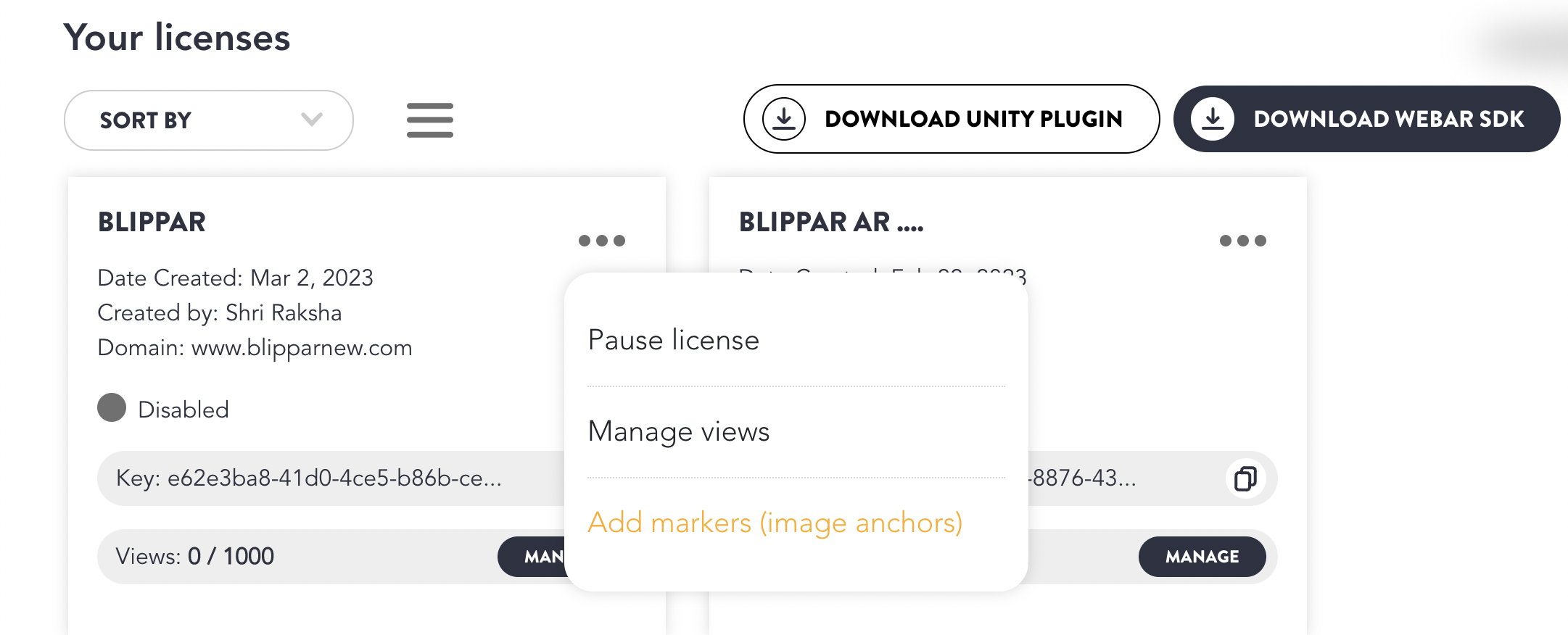
* Click **‘Add Marker’** from **‘Your Licenses’** tab as shown in the image below

<figure><img src="/files/lyV5EzY9SkCvQ7pqdrFd" alt=""><figcaption><p>Add Marker</p></figcaption></figure>

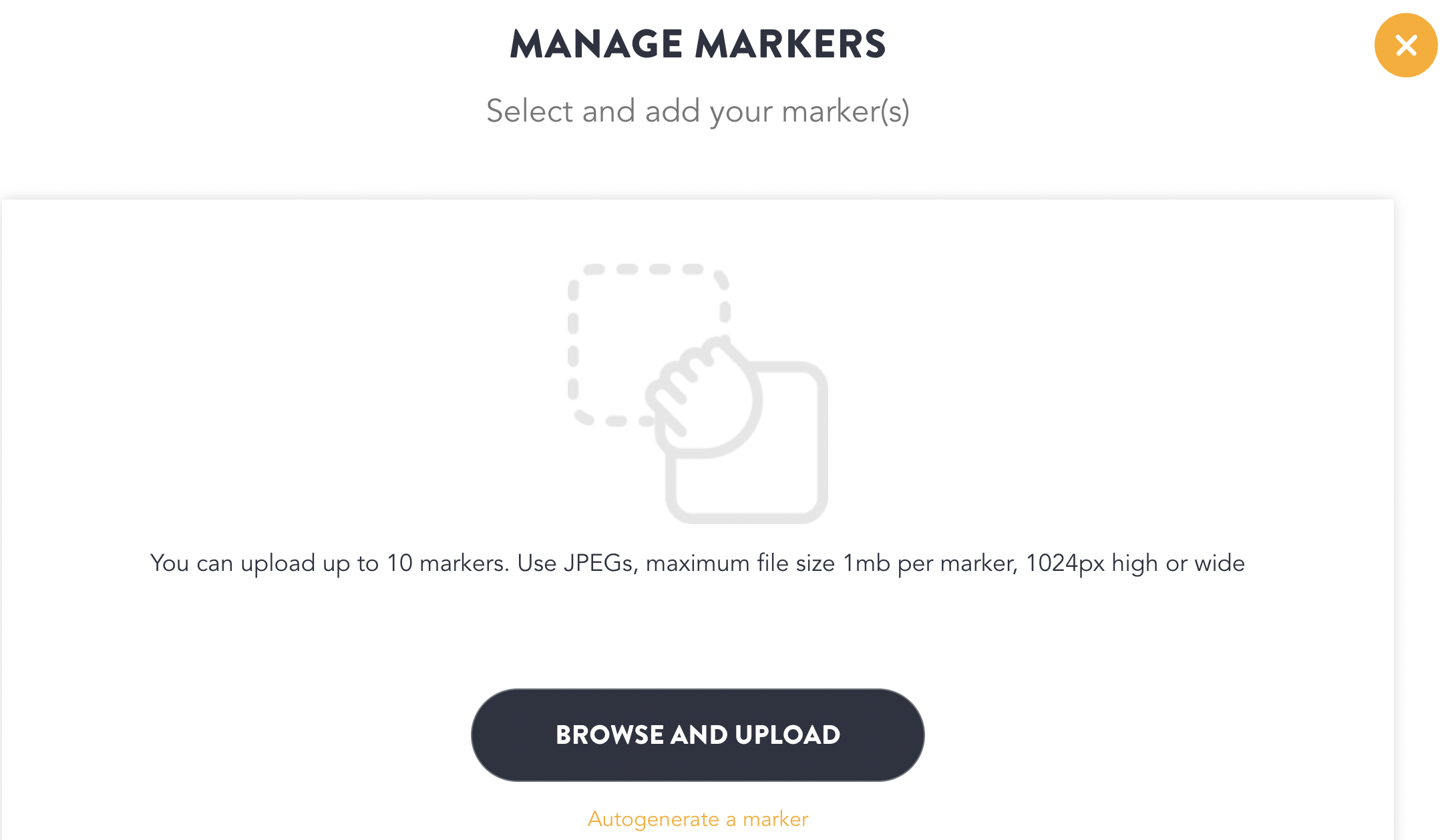
* You will be redirected to a page where you can browse or upload the marker. You can also auto-generate a marker which will provide a sample marker for testing the tracking.

<figure><img src="/files/70qB5izjekXQKoWhpOzj" alt=""><figcaption><p>Browse and Upload Markers</p></figcaption></figure>

* Click **‘Browse and Upload’** markers
* Choose the desired marker you wish to upload
* You can alternatively **‘Drag and Drop’** the marker as shown in the image above, or you can autogenerate a marker.
* Up to 10 marker images can be tracked one at a time

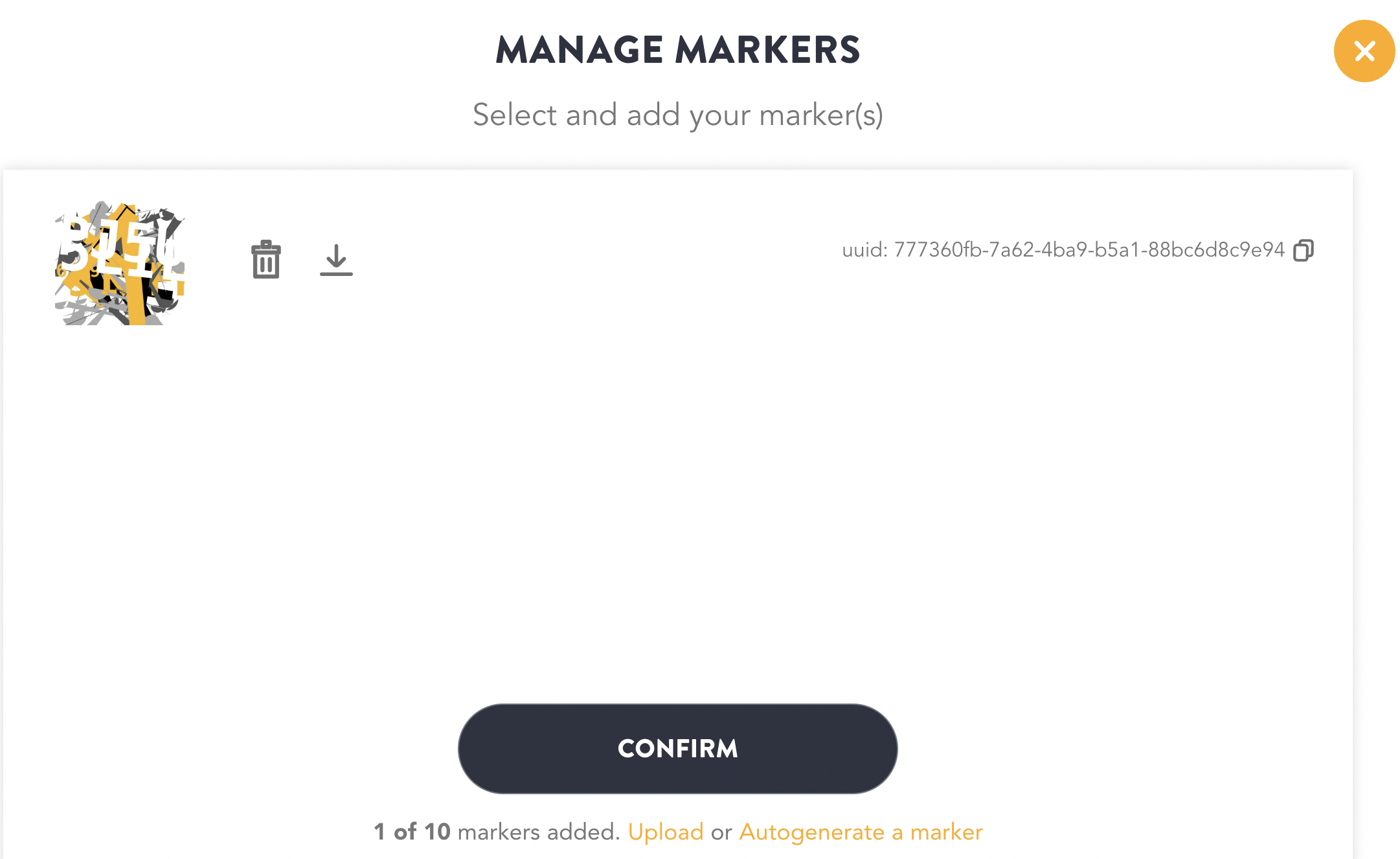
<figure><img src="/files/xAztVljLyBDLCxibkXhi" alt=""><figcaption><p>Autogenerated Marker</p></figcaption></figure>

* Click Confirm
* The marker is added to the project.

## Manage Markers <a href="#h_01fmg1g661tyzs434vcwdgkndx" id="h_01fmg1g661tyzs434vcwdgkndx"></a>

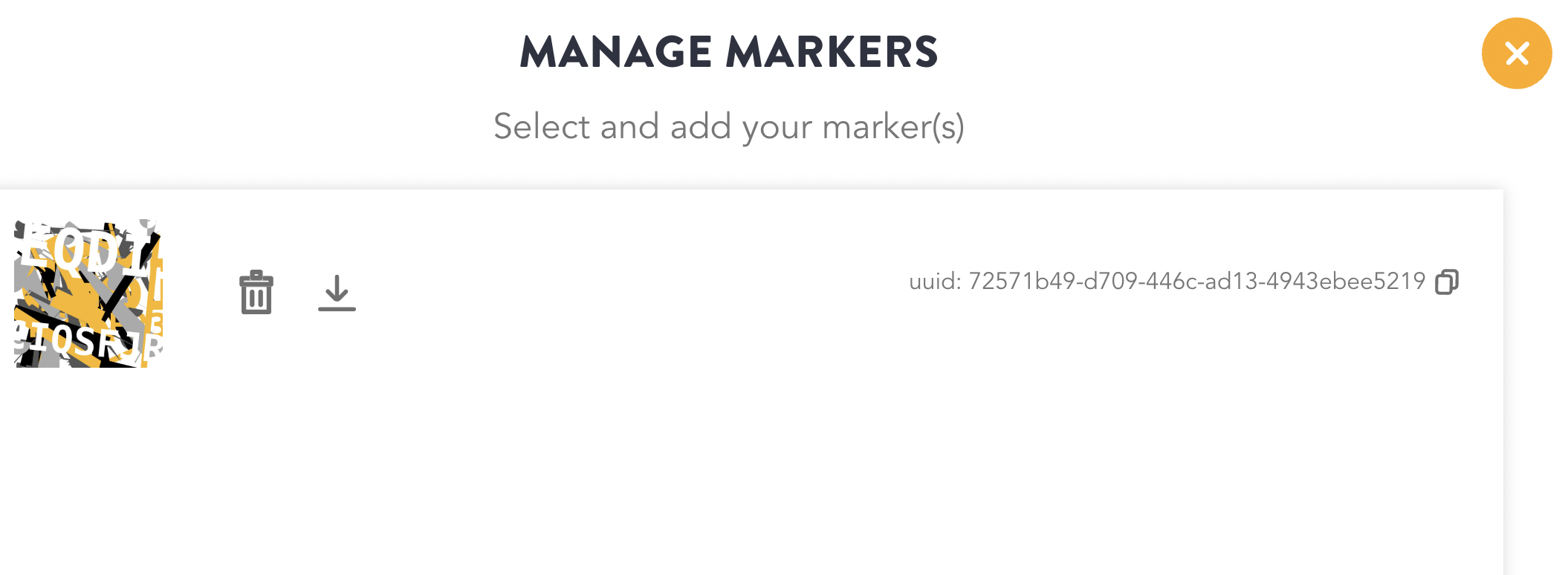
The markers can be managed from the **‘Manage markers’** section once the user adds 1 or more markers. Manage markers section will include the following options:

* Browse and upload up to 10 markers
* Delete the uploaded markers
* Download the uploaded markers
* Autogenerate markers

### Procedure to Manage Markers

* Login to the[ HUB](https://www.blipps.blippar.com).
* Select the specific license for which a marker has been added.
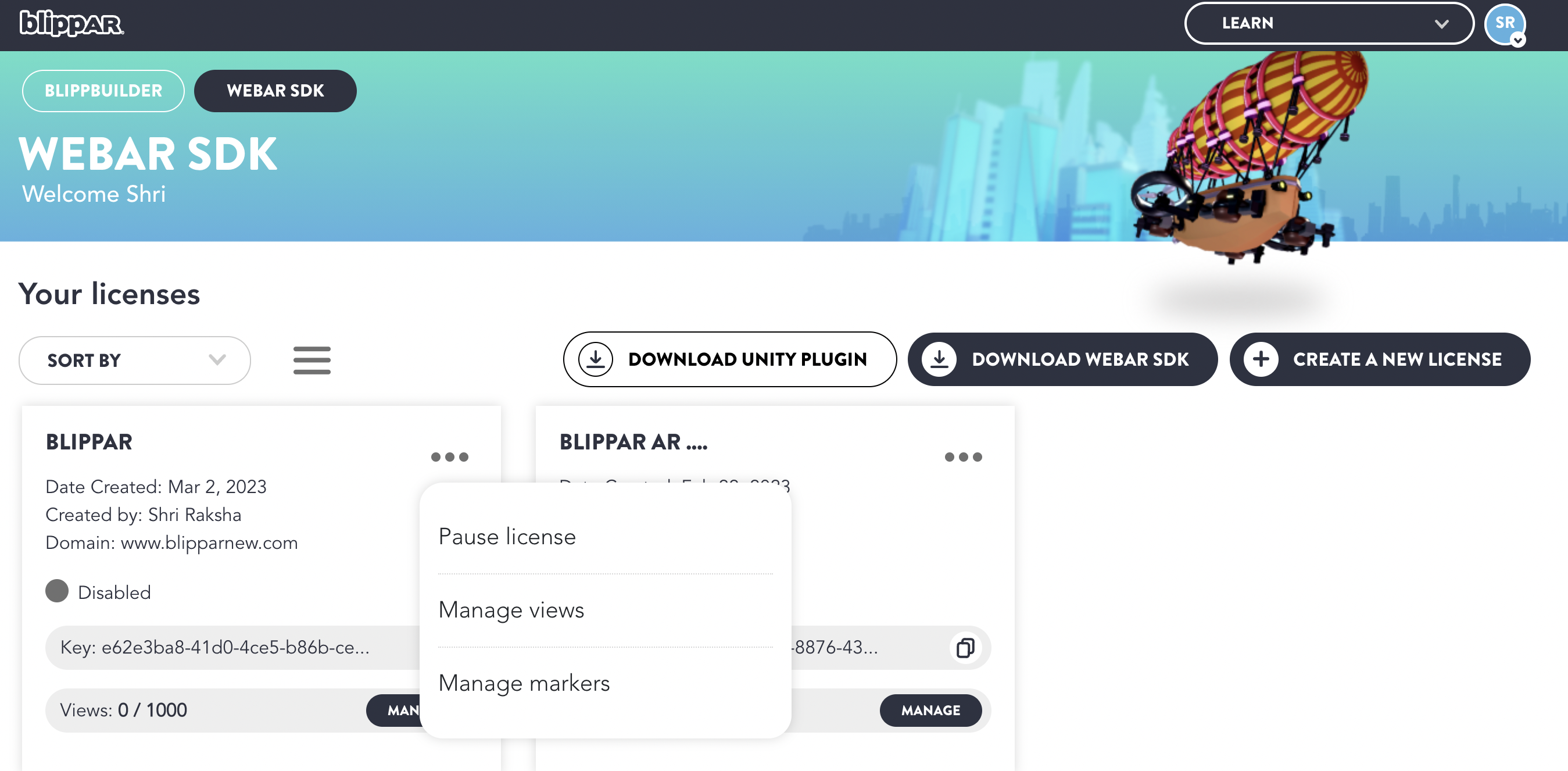
* Click on **'Manage Markers'** as shown below:

<figure><img src="/files/yL3qVWDyHvVZyc18At50" alt=""><figcaption><p>Manage Markers</p></figcaption></figure>

## Browse and Upload Markers <a href="#h_01fmg1gkeqjk5b3pv41c408cwv" id="h_01fmg1gkeqjk5b3pv41c408cwv"></a>

Click ‘Browse and upload’ markers or alternatively ‘drag and drop’ desired marker in the section as shown in below image:

## Delete Uploaded Markers <a href="#h_01fmg1gxrspx2e7zcsnk1bjp4w" id="h_01fmg1gxrspx2e7zcsnk1bjp4w"></a>

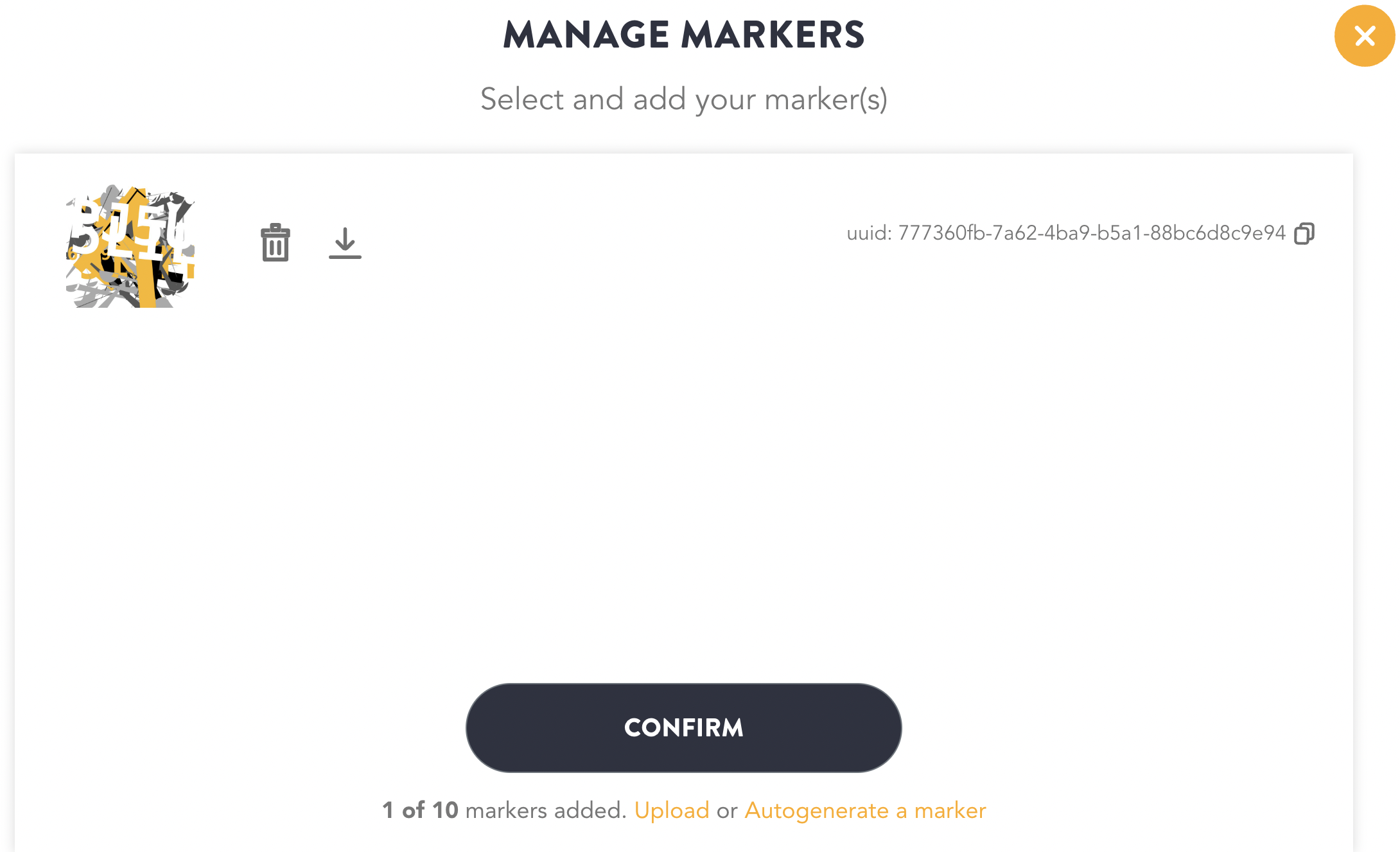
* The uploaded markers can be seen in the ‘Manage Marker’ section
* Click on the bin icon to delete an uploaded marker as shown in the image below:

<figure><img src="/files/jvO0WOlc8txBRlweRqw1" alt=""><figcaption><p>Bin Icon to Delete Marker</p></figcaption></figure>

* You will get a pop-up to confirm the delete action.

<figure><img src="/files/jnmA7lNOuWgKNZiXTaE6" alt=""><figcaption><p>Delete Marker</p></figcaption></figure>

* Click **'Yes'** to confirm the delete action.
* The uploaded marker will get deleted.

## Download Markers <a href="#h_01fmg1h7hba96v0655559gg983" id="h_01fmg1h7hba96v0655559gg983"></a>

* Login to the[ HUB](https://www.blipps.blippar.com).
* Select the specific license for which a marker has been added.
* Click on **'Manage Markers'** as shown below:

<figure><img src="/files/cjfah9SgtMPueOpsYvHJ" alt=""><figcaption><p>Manage Markers</p></figcaption></figure>

* Click on the **'Download icon'** next to the **'Bin'** icon as shown below:

<figure><img src="/files/j9Ir1myejmceqM87QFsF" alt=""><figcaption><p>Download Marker</p></figcaption></figure>

* The specific marker is downloaded.

## Build A Basic Marker Tracking Experience <a href="#h_01fmd5pb1z032qqsv9e5z3fcts" id="h_01fmd5pb1z032qqsv9e5z3fcts"></a>

New attribute <mark style="color:red;">webar-marker</mark>=<mark style="color:blue;">"id: 123-xyz"</mark> can be added to an Aframe <mark style="color:orange;">\<a-entity></mark> to display a 3D model on a marker/image surface.

## **To track the uploaded markers using WebAR SDK follow the below steps:**

* While loading WebAR SDK script and integrating it, add this new attribute:

```html
<script src="https://aframe.io/releases/1.3.0/aframe.min.js"></script>

<!-- Step 1: Include WebAR SDK script -->
<script src="../webar-sdk-v1.5.1.min.js"
  webar-mode="marker-tracking"></script>
```

* When <mark style="color:red;">webar-mode</mark>=<mark style="color:blue;">"marker-tracking"</mark> attribute is added to the script tag, WebAR SDK will run in marker tracking mode instead of surface tracking.
* SDK will run in marker tracking mode instead of surface tracking

{% hint style="info" %}

* From Webar SDK v1.1.0-beta and above, A-frame script has to be included separately
* Supports A-frame version 1.3.0
  {% endhint %}

## **To map a marker image to the <**<mark style="color:red;">**a-scene webar-scene**</mark>**>** **follow the below steps:**

* Click the copy icon next to the **'License Key'** information to copy the **marker ID** from the **‘Manage Marker’** section as shown in the image below:

<figure><img src="/files/xoVDObecjSTgS321Fko2" alt=""><figcaption><p>Copy License Key</p></figcaption></figure>

* Create a parent <<mark style="color:red;">a-entity webar-marker</mark>> under <<mark style="color:red;">a-scene webar-scene</mark>>
* Paste the Marker ID as shown in the below attribute

```html
<a-entity webar-marker="id: b3ed7e4c-7423-44c0-8af1-63567b27a1e9">
```

* To add more markers IDs replicate the above steps.

## Mapping Marker ID with a 3D model: <a href="#h_01fmd5nrakz9405qpm65dtn9tf" id="h_01fmd5nrakz9405qpm65dtn9tf"></a>

* To display a 3D model on an image surface, create a child <<mark style="color:red;">a-entity</mark>> under <<mark style="color:red;">a-entity webar-marker</mark>>
* For example, we use gltf-model in the child \<a-entity> element.

```html
<a-entity gltf-model="#testmodel1" id="testmodel_1" rotation="90 0 0" position="0 0 0" scale="5 5 5" 
webar-loadmonitor="elType: glb"></a-entity>
```

## Full Source Attributes

```html
<!DOCTYPE html>
<html>
<head>
<link rel="shortcut icon" href="#" />
<title>STAGE DEV: Blippar WebAR SDK</title>

<script src="https://aframe.io/releases/1.3.0/aframe.min.js"></script>

<!-- Step 1: Include WebAR SDK script -->
<script src="../webar-sdk-v1.5.1.min.js"
webar-mode="marker-tracking"
auto-init="false"
auto-start="true"
logo-src="images/test_logo_here.png"
logo-width="116px"
logo-height="116px"
progress-dot-ring-scale="0.30"
progress-dot-ring-color="#00AAFF"
progress-ring-scale="0.36"
progress-ring-color="#00FFFF"
progress-ring-line-width="5"

alert-border-color="#00FFFF"
alert-border-width="5px"
alert-background-color="#283747"
alert-message-text-color="#00AAFF"
alert-button-color="#00FFFF"
alert-button-text-color="#283747"
alert-button-height="50px"
alert-camera-permission-text="We need to ask for access to the camera so this experience can work!!!"
alert-camera-permission-button-text="No Problem"
alert-motion-permission-text="Now we need access to motion sensors!!!"
alert-motion-permission-button-text="No Problem"
alert-box-width="290px"
alert-box-height="182px"
alert-box-font-size="24px"

ui-background-color="#283747"
ui-text-color="#00FFFF"
desktop-logo-src="images/test_desktop_logo.png"
desktop-logo-width="108px"
desktop-logo-height="30px"
issue-img-src="images/test_issue_img.png"
issue-img-width="116px"
issue-img-height="116px"
show-guide-view="true"

auto-marker-detection="true"
auto-scan-instruction="Look for a marker to scan..."
auto-scan-instruction-detect="Detecting..."
auto-scan-instruction-idle="Move around to look for a marker"
auto-scan-instruction-text-style="color: orange"
auto-scan-style="display: none; position: absolute; top: 90%; left: 50%; transform: translate(-50%, -50%); z-index: 10000; width: auto; height: auto; text-align: center;"
auto-scan-style-display="block"
scan-btn-width="100"
scan-btn-height="100"
scan-btn-display="block"
scan-btn-instruction="Tap to scan"
scan-btn-instruction-style="color: white"
scan-btn-img-src="images/user_scan-btn-image_here.png"
scan-btn-img-width="50"
scan-btn-img-height="50"
scan-btn-img-x-coordinate="50%"
scan-btn-img-y-coordinate="50%"
scan-btn-img-transform="translate(-25, -25)"
scan-btn-progress-circle-cx-coordinate="50"
scan-btn-progress-circle-cy-coordinate="50"
scan-btn-progress-circle-radius="35"
scan-btn-progress-circle-style="fill: none; stroke: cyan; stroke-width: 6;"
scan-btn-progress-bar-cx-coordinate="50"
scan-btn-progress-bar-cy-coordinate="50"
scan-btn-progress-bar-radius="35"
scan-btn-progress-bar-transform="rotate(-90 50 50)"
scan-btn-progress-bar-color="blue"></script>
</head>​ 
<body>

<!-- Step 2: Add webar-scene attribute to AFrame's <a-scene> tag -->
<!-- Provide a valid Blippar license-key value in the key: property -->
<a-scene
webar-scene="key: 5439e9a1-c035-4eb0-a1a6-ebfb98273b33"
vr-mode-ui="enabled: false"
device-orientation-permission-ui="enabled: false"
loading-screen="enabled: false"
renderer="colorManagement: true;">

<!-- Step 3: Add webar-camera attribute to AFrame's <a-entity camera> tag -->
<a-camera webar-camera></a-camera>

<a-assets timeout="60000">
<a-asset-item id="testmodel1" src="models/MaterialsVariantsShoe.glb"></a-asset-item>
<a-asset-item id="testmodel2" src="models/astronaut.glb"></a-asset-item>
</a-assets>

<!-- Step 4: Add webar-marker attribute with a valid marker id value(obtained from Blippar hub), to AFrame's parent <a-entity> tag -->
<!-- The models defined as a child element under this webar-marker id, will be displayed on the marker image during marker image tracking -->
<a-entity webar-marker="id: b3ed7e4c-7423-44c0-8af1-63567b27a1e9">
<!-- Step 5: Add AR models under the webar-marker nodes -->
<!-- Add webar-loadmonitor attribute to the entities to display loading progress screen before starting the surface tracking -->
<!-- Refer API:Attributes documentation for more details -->
<a-entity gltf-model="#testmodel1" id="testmodel_1" rotation="90 0 0" position="0 0 0" scale="5 5 5" webar-loadmonitor="elType: glb"></a-entity>
</a-entity>

<!-- Step 6: Add another webar-marker attribute with a valid marker id to another parent <a-entity> tag -->
<a-entity webar-marker="id: 7a9ca8e2-bf27-44c1-828d-6bca876bb7a7">
<a-entity gltf-model="#testmodel2" id="testmodel_2" rotation="0 0 0" position="0 -0.5 0" scale="0.25 0.25 0.25" webar-loadmonitor="elType: glb"></a-entity>
</a-entity>

</a-scene>

<!-- Refer API:Functions documentation for more details -->
<script>
WEBARSDK.Init();

// Give a callback when the WebAR Stage <a-entity webar-stage> is ready to display the 3d object
WEBARSDK.SetMarkerDetectedCallback((markerId) => {
  console.log('Marker is detected for marker id: ', markerId);
});

WEBARSDK.SetMarkerLostCallback((markerId) => {
  console.log('Marker tracking is lost for marker id: ', markerId);
});
</script>
</body>
</html>
```

## **To switch between auto marker detection and manual marker detection**

By default, auto scan mode is enabled i.e. *<mark style="color:red;">auto-marker-detection</mark> = <mark style="color:blue;">'true'.</mark>* You may switch back to manual marker detection by setting *<mark style="color:red;">auto-marker-detection</mark> = <mark style="color:blue;">'false'.</mark>*

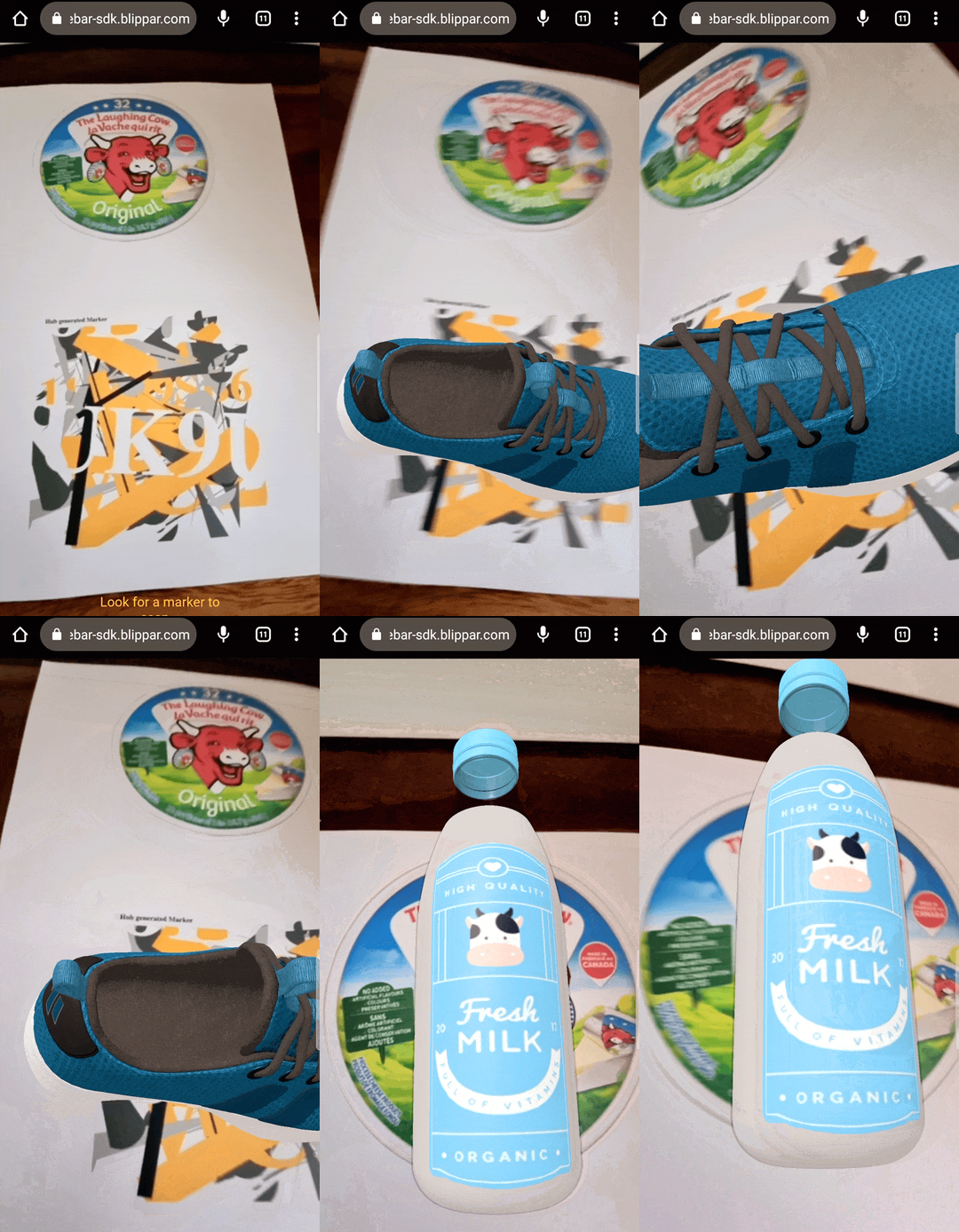
## **Resulting Marker Tracking Experience**
<figure><img src="/files/yvGntKfoI5agTh3KSLQ0" alt=""><figcaption><p>Resulting Marker Tracking Experience</p></figcaption></figure>


---

# Agent Instructions: Querying This Documentation

If you need additional information that is not directly available in this page, you can query the documentation dynamically by asking a question.

Perform an HTTP GET request on the current page URL with the `ask` query parameter:

```
GET https://docs.blippar.com/webar-sdk/v2.0.0/integrations/a-frame-integration/build-a-marker-tracking-experience.md?ask=<question>
```

The question should be specific, self-contained, and written in natural language.
The response will contain a direct answer to the question and relevant excerpts and sources from the documentation.

Use this mechanism when the answer is not explicitly present in the current page, you need clarification or additional context, or you want to retrieve related documentation sections.