> For the complete documentation index, see [llms.txt](https://docs.blippar.com/webar-sdk/llms.txt). Markdown versions of documentation pages are available by appending `.md` to page URLs; this page is available as [Markdown](https://docs.blippar.com/webar-sdk/v2.0.5/integrations/a-frame-integration/build-a-marker-tracking-experience.md).
# Build a Marker Tracking Experience
Construction of an AR experience using image or marker tracking
{% content-ref url="/spaces/3UKy7VHRJWrNarYaMp13" %}
[Blippar Documentation Centre](https://docs.blippar.com/blippar-documentation-centre/)
{% endcontent-ref %}
## Introduction
This guide walks you through the process of building a basic scene using marker tracking or image tracking feature of WebAR SDK. The marker images can be tracked using the mobile app developed using WebAR SDK.
New attribute webar-marker="id: 123-xyz" can be added to an Aframe \ to display a 3D model on a marker/image surface.
## Procedure
Follow the below steps to build a basic scene using marker tracking:
## Add marker
* Login to the[ HUB](https://www.blipps.blippar.com).
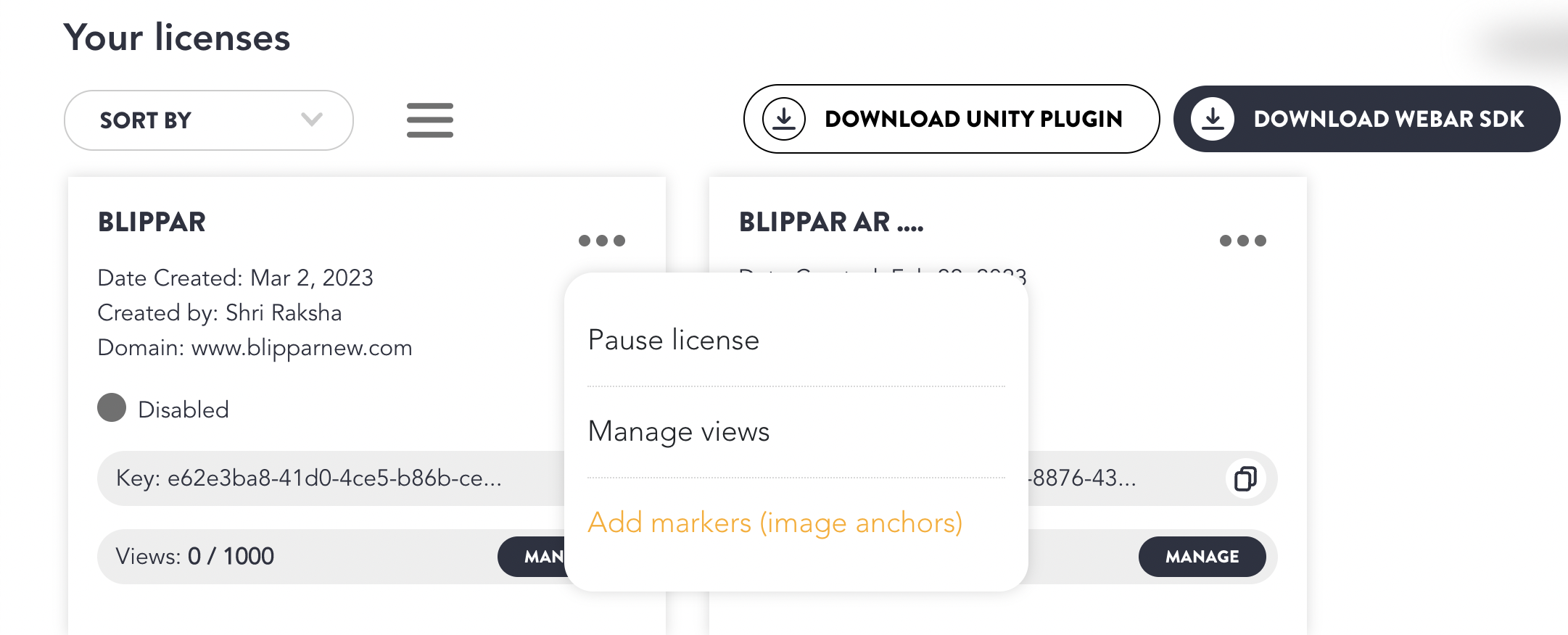
* Click **‘Add Marker’** from **‘Your Licenses’** tab as shown in the image below
Add Marker
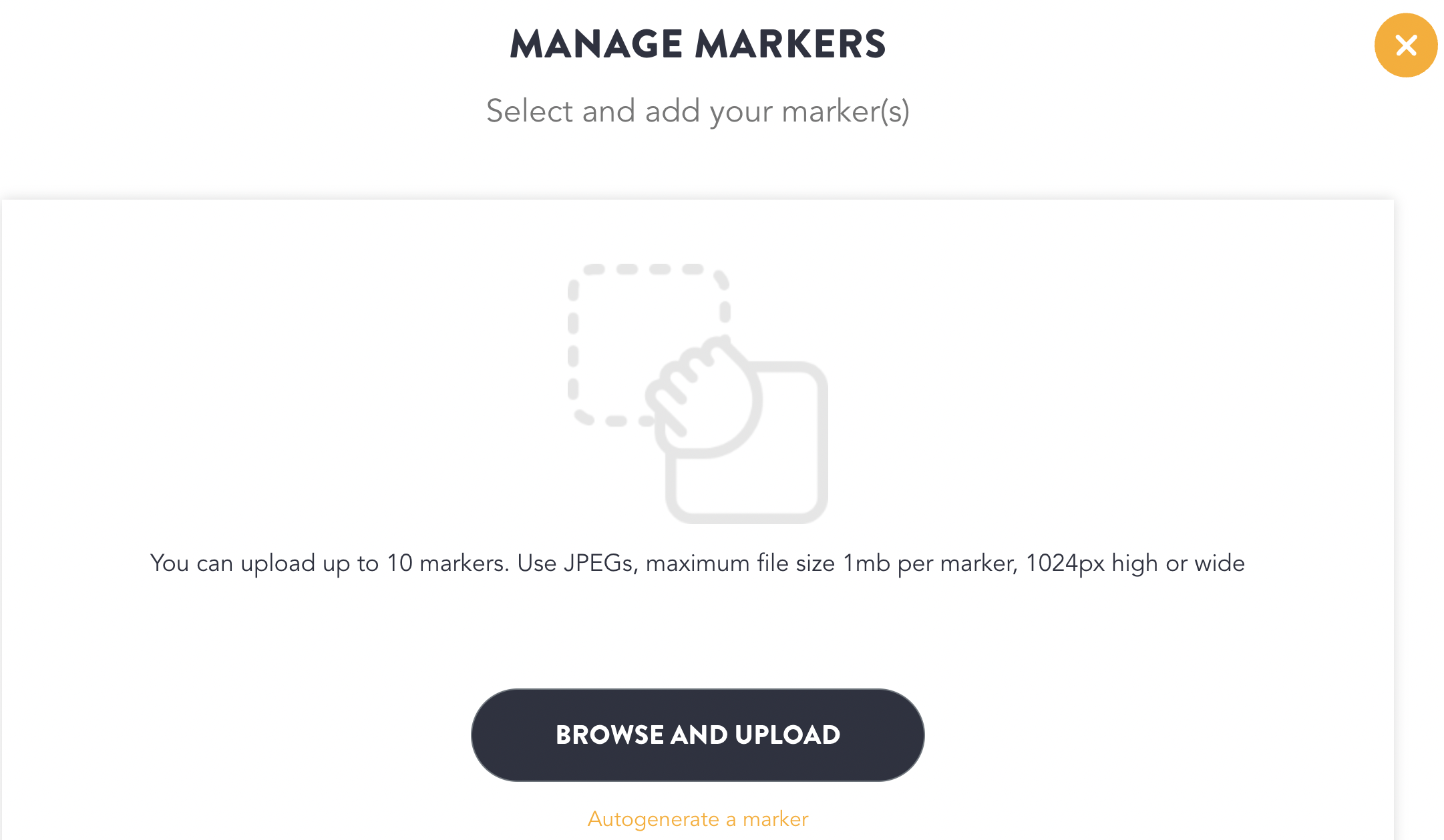
* You will be redirected to a page where you can browse or upload the marker. You can also auto-generate a marker which will provide a sample marker for testing the tracking.
Browse and Upload Markers
* Click **‘Browse and Upload’** markers
* Choose the desired marker you wish to upload
* You can alternatively **‘Drag and Drop’** the marker as shown in the image above, or you can autogenerate a marker.
* Up to 10 marker images can be tracked one at a time
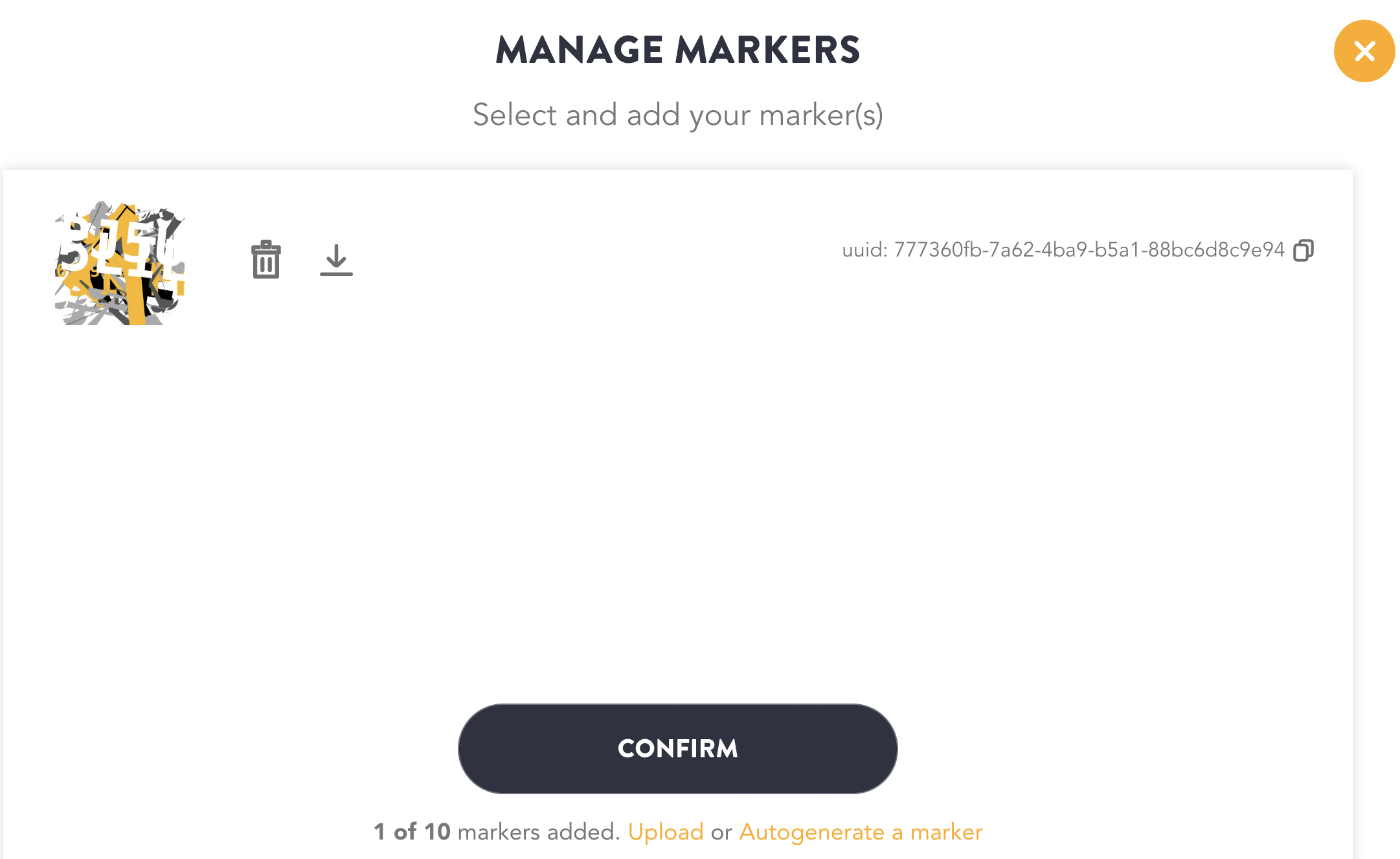
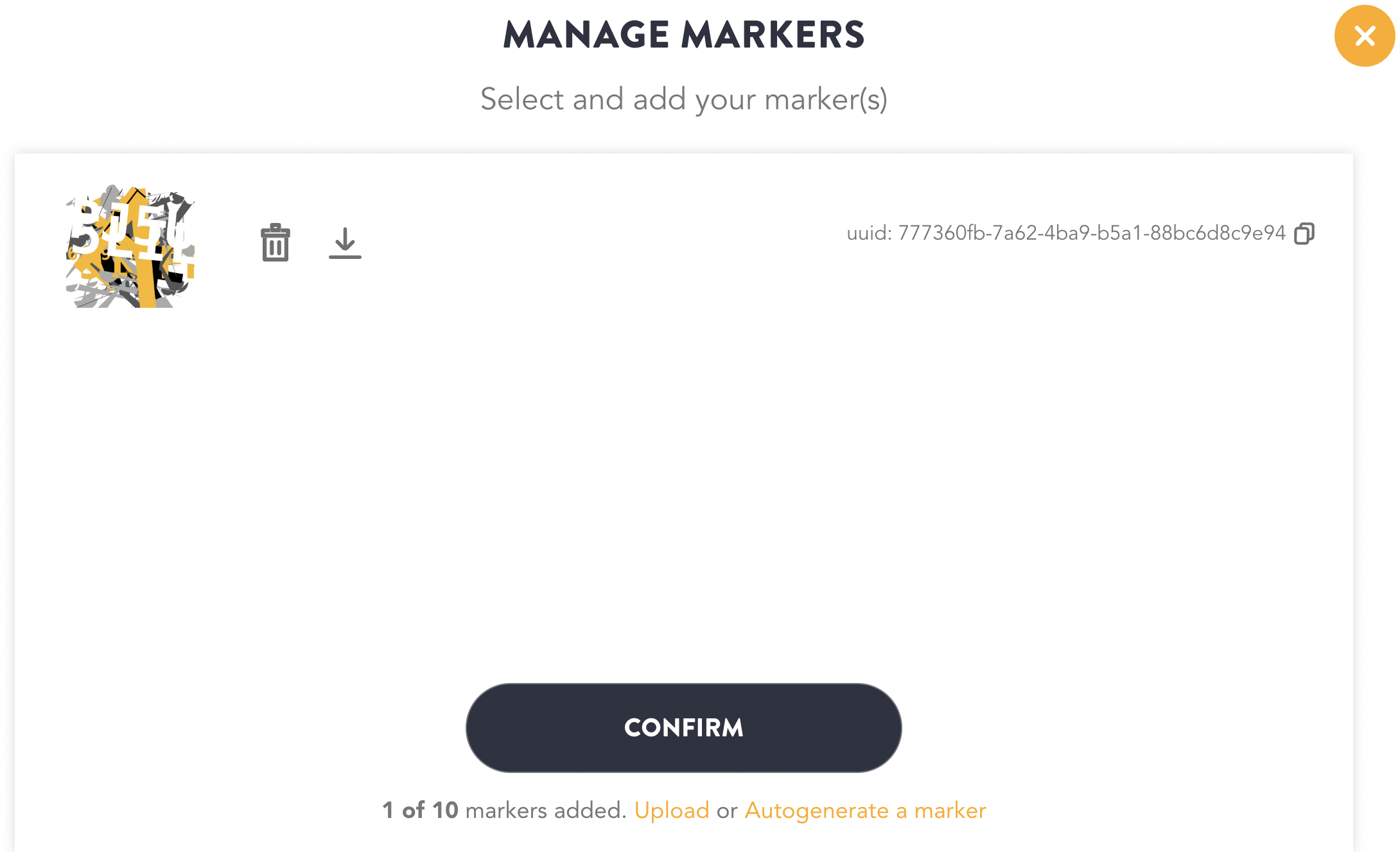
Autogenerated Marker
* Click Confirm
* The marker is added to the project.
## Manage Markers
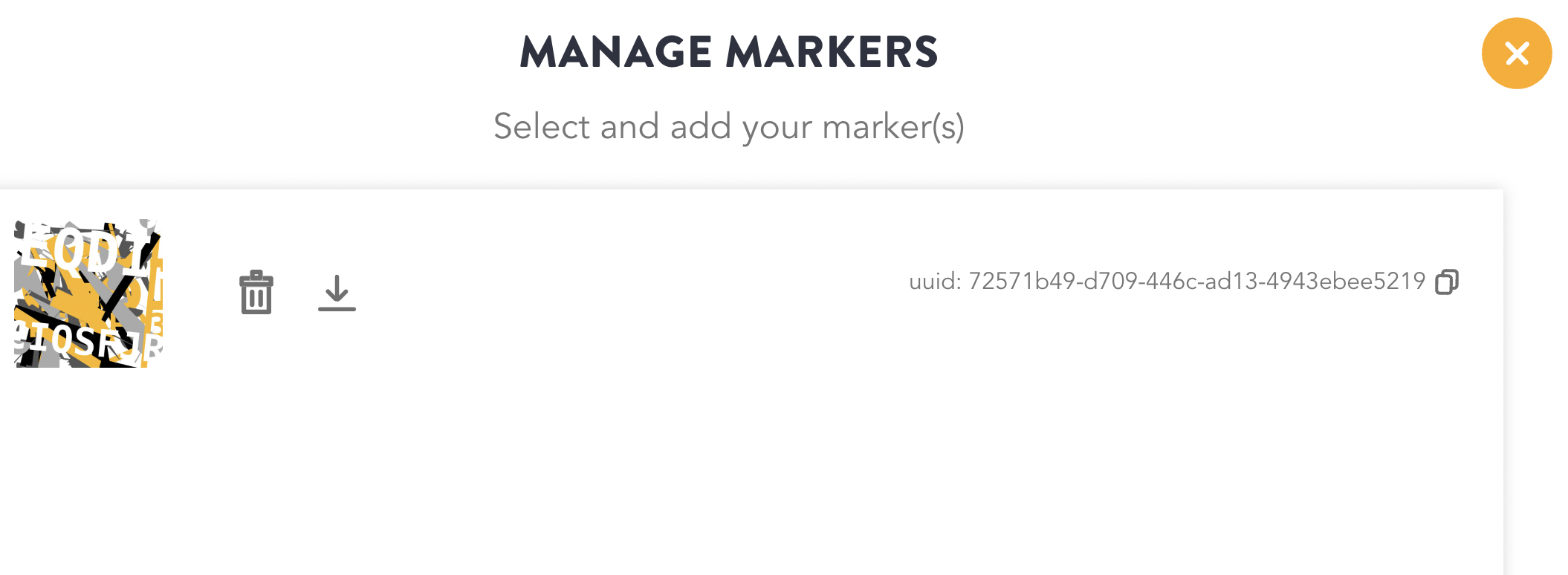
The markers can be managed from the **‘Manage markers’** section once the user adds 1 or more markers. Manage markers section will include the following options:
* Browse and upload up to 10 markers
* Delete the uploaded markers
* Download the uploaded markers
* Autogenerate markers
### Procedure to Manage Markers
* Login to the[ HUB](https://www.blipps.blippar.com).
* Select the specific license for which a marker has been added.
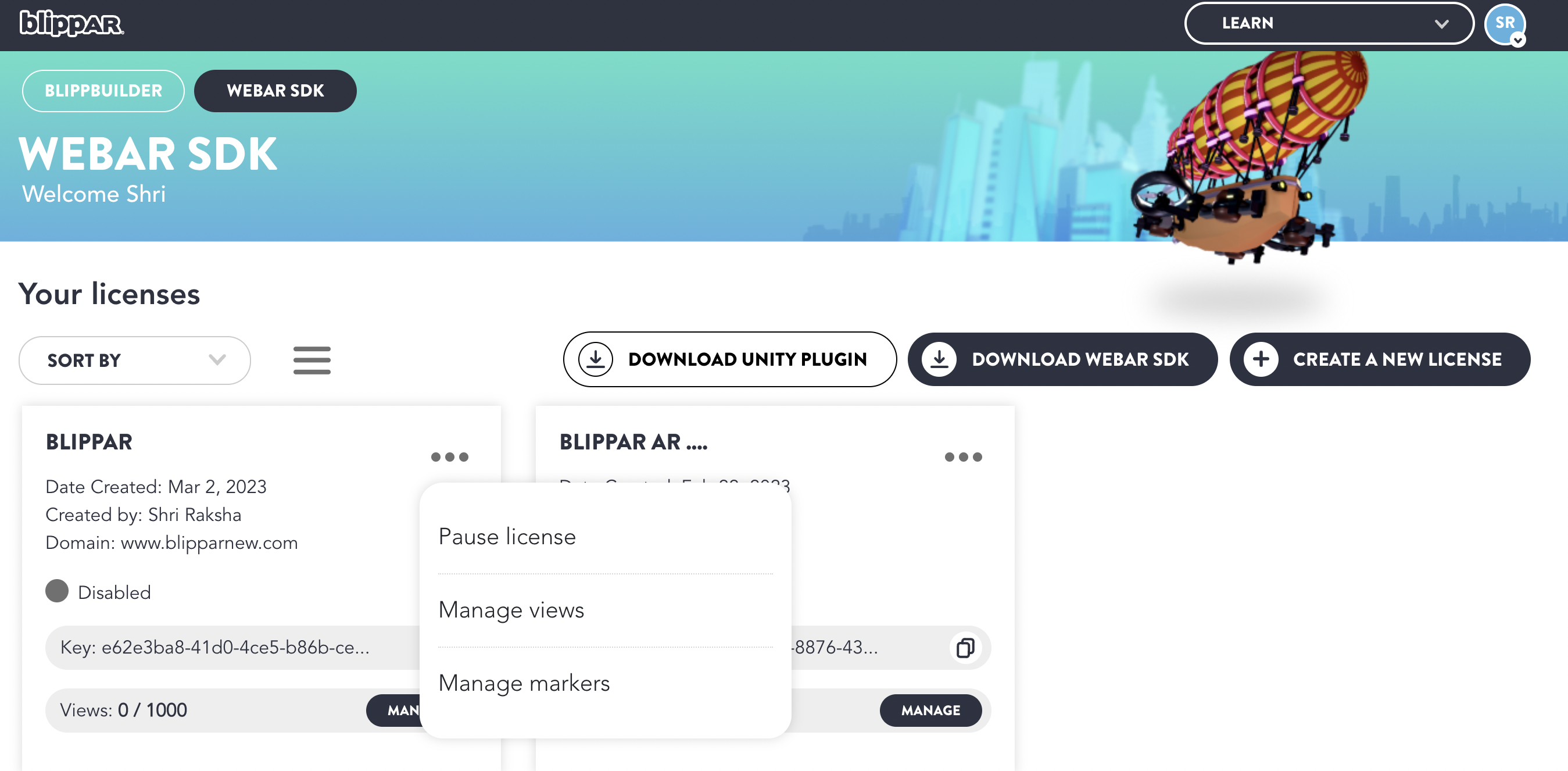
* Click on **'Manage Markers'** as shown below:
Manage Markers
## Browse and Upload Markers
Click ‘Browse and upload’ markers or alternatively ‘drag and drop’ desired marker in the section as shown in below image:
## Delete Uploaded Markers
* The uploaded markers can be seen in the ‘Manage Marker’ section
* Click on the bin icon to delete an uploaded marker as shown in the image below:
Bin Icon to Delete Marker
* You will get a pop-up to confirm the delete action.
Delete Marker
* Click **'Yes'** to confirm the delete action.
* The uploaded marker will get deleted.
## Download Markers
* Login to the[ HUB](https://www.blipps.blippar.com).
* Select the specific license for which a marker has been added.
* Click on **'Manage Markers'** as shown below:
Manage Markers
* Click on the **'Download icon'** next to the **'Bin'** icon as shown below:
Download Marker
* The specific marker is downloaded.
## Build A Basic Marker Tracking Experience
New attribute webar-marker="id: 123-xyz" can be added to an Aframe \ to display a 3D model on a marker/image surface.
## **To track the uploaded markers using WebAR SDK follow the below steps:**
* While loading WebAR SDK script and integrating it, add this new attribute:
```html
```
* When webar-mode="marker-tracking" attribute is added to the script tag, WebAR SDK will run in marker tracking mode instead of surface tracking.
* SDK will run in marker tracking mode instead of surface tracking
{% hint style="info" %}
* From Webar SDK v1.1.0-beta and above, A-frame script has to be included separately
* Supports A-frame version 1.3.0
{% endhint %}
## **To map a marker image to the <****a-scene webar-scene****>** **follow the below steps:**
* Click the copy icon next to the **'License Key'** information to copy the **marker ID** from the **‘Manage Marker’** section as shown in the image below:
Copy License Key
* Create a parent <a-entity webar-marker> under <a-scene webar-scene>
* Paste the Marker ID as shown in the below attribute
```html
```
* To add more markers IDs replicate the above steps.
## Mapping Marker ID with a 3D model:
* To display a 3D model on an image surface, create a child <a-entity> under <a-entity webar-marker>
* For example, we use gltf-model in the child \ element.
```html
```
## Full Source Attributes
```html
STAGE DEV: Blippar WebAR SDK
```
## **To switch between auto marker detection and manual marker detection**
By default, auto scan mode is enabled i.e. *auto-marker-detection = 'true'.* You may switch back to manual marker detection by setting *auto-marker-detection = 'false'.*
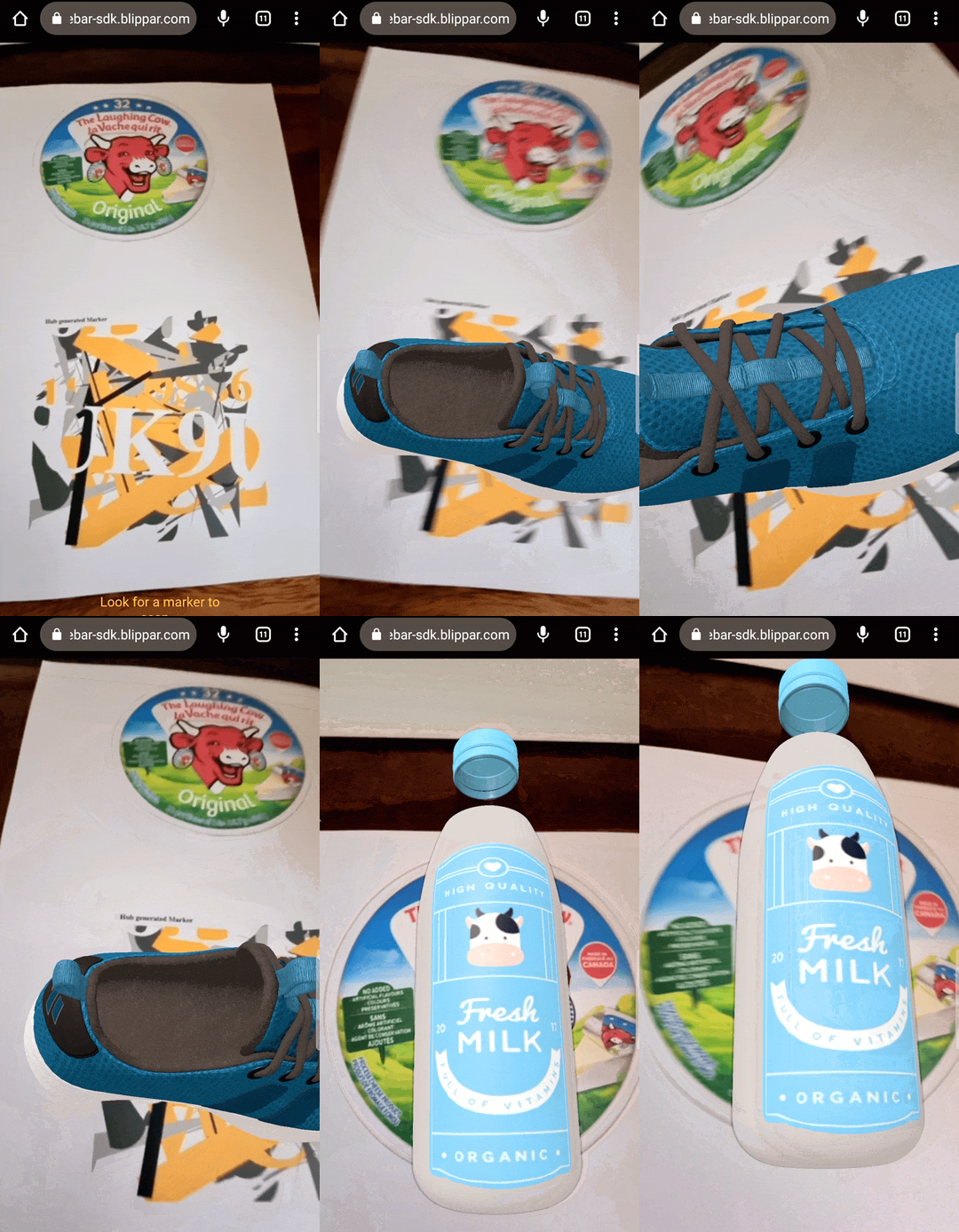
## **Resulting Marker Tracking Experience**
.png)

.png)